Applies To: Practitioners
This guide explains how to view, add, and remove relationships between clients within the Mynd platform. Defining relationships helps organize client connections and streamlines features like group booking.
Prerequisites:
You must have permission to view and edit client profiles.
Client profiles for the individuals involved must already exist in the system.
Steps:
Navigate to Client Profile: Open the profile of the client whose relationships you want to manage.
Find the 'Relationships' Tab: Locate and click on the Relationships tab within the client's profile navigation.
If no relationships exist, you will see a message like "No relationships defined for this client."
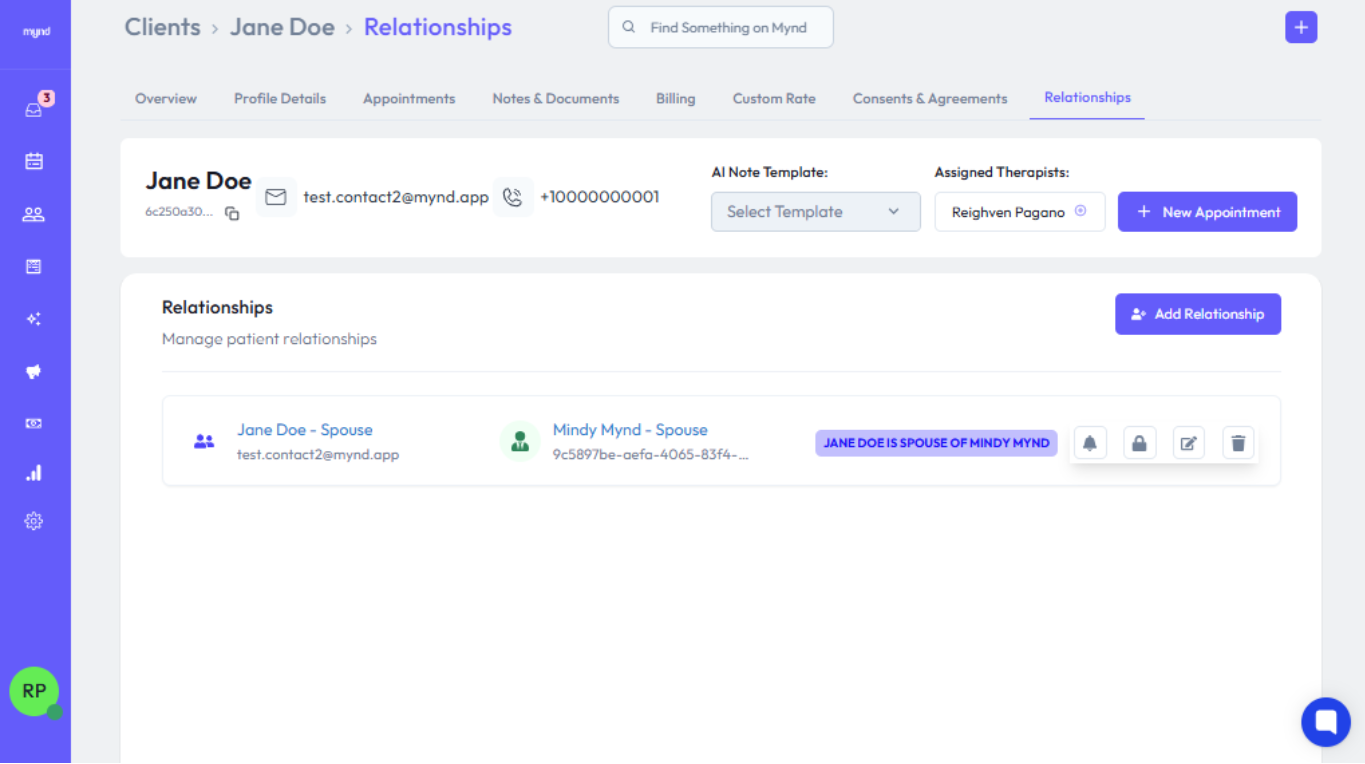
Initiate Add: Click the Add Relationship button/link within the Relationships tab.
Select Related Client: In the client selector field that appears, search for and select the other client you want to link. You cannot select the client whose profile you are currently viewing.
![Placeholder: Screenshot of client selector dropdown]
Choose Primary Relationship Type: Select the relationship of the selected client relative to the current client from the first dropdown (e.g., if viewing Client A's profile and selecting Client B, choose how B is related to A - e.g., "Child"). The available types are: "Spouse", "Parent", "Child", "Sibling", "Other".
Confirm/Adjust Inverse Relationship:
An "Inverse Relationship Type" dropdown will automatically populate with the logical inverse (e.g., if you chose "Child", it will pre-select "Parent").
The mappings are: Spouse <-> Spouse, Parent <-> Child, Sibling <-> Sibling.
If you chose "Other", the inverse defaults to "Other".
You can manually change the inverse relationship type if needed, especially when using "Other".
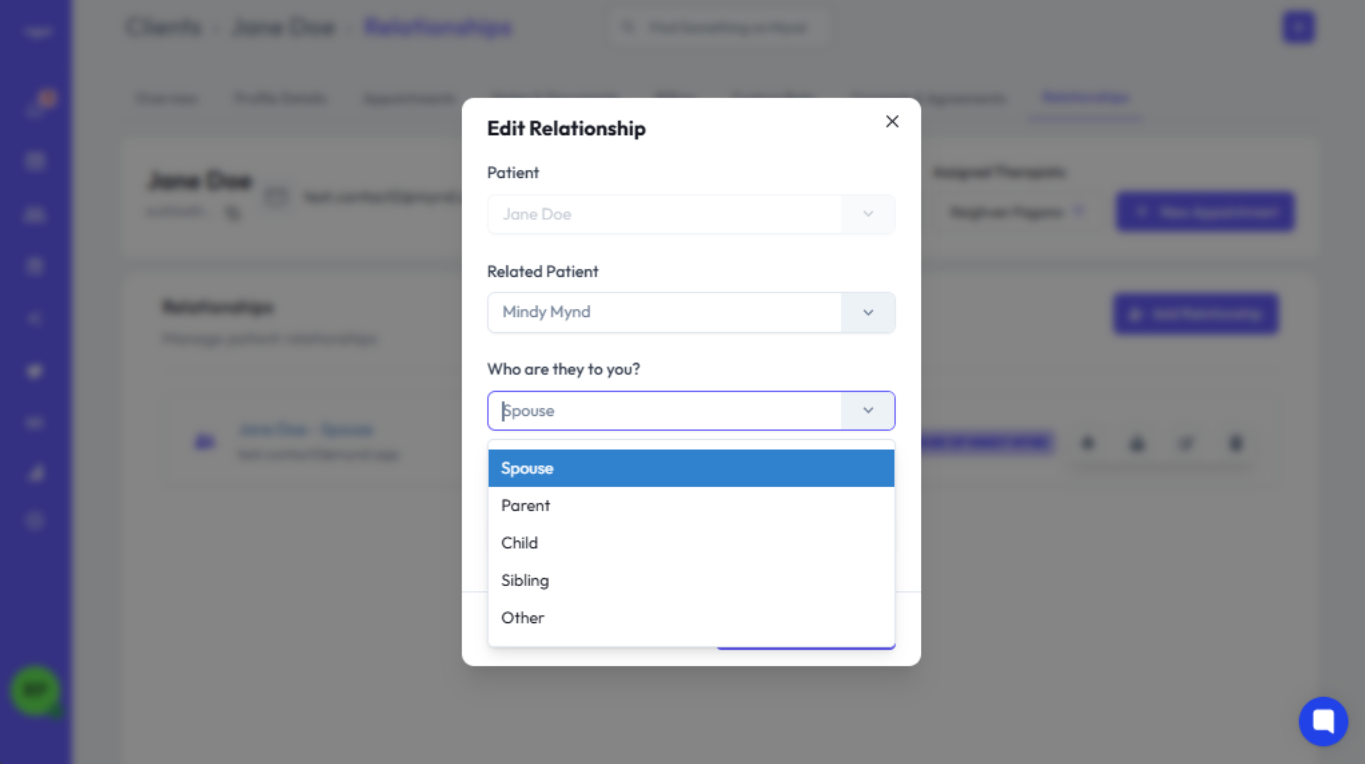
Save: Click the Save button. The relationship is now defined bidirectionally (e.g., Client A's profile shows Client B as Child, and Client B's profile shows Client A as Parent).
Navigate to the Relationships Tab: Access the Relationships tab for the desired client (as in Step 1).
Review the List: If relationships exist, they will be displayed in a list or table.
Identify Details: Each entry will show:
The related client's full name.
Their relationship type from the perspective of the client whose profile you are viewing (e.g., "Jane Doe - Spouse").
Navigate to Related Client: Click on the related client's name to navigate directly to their profile.
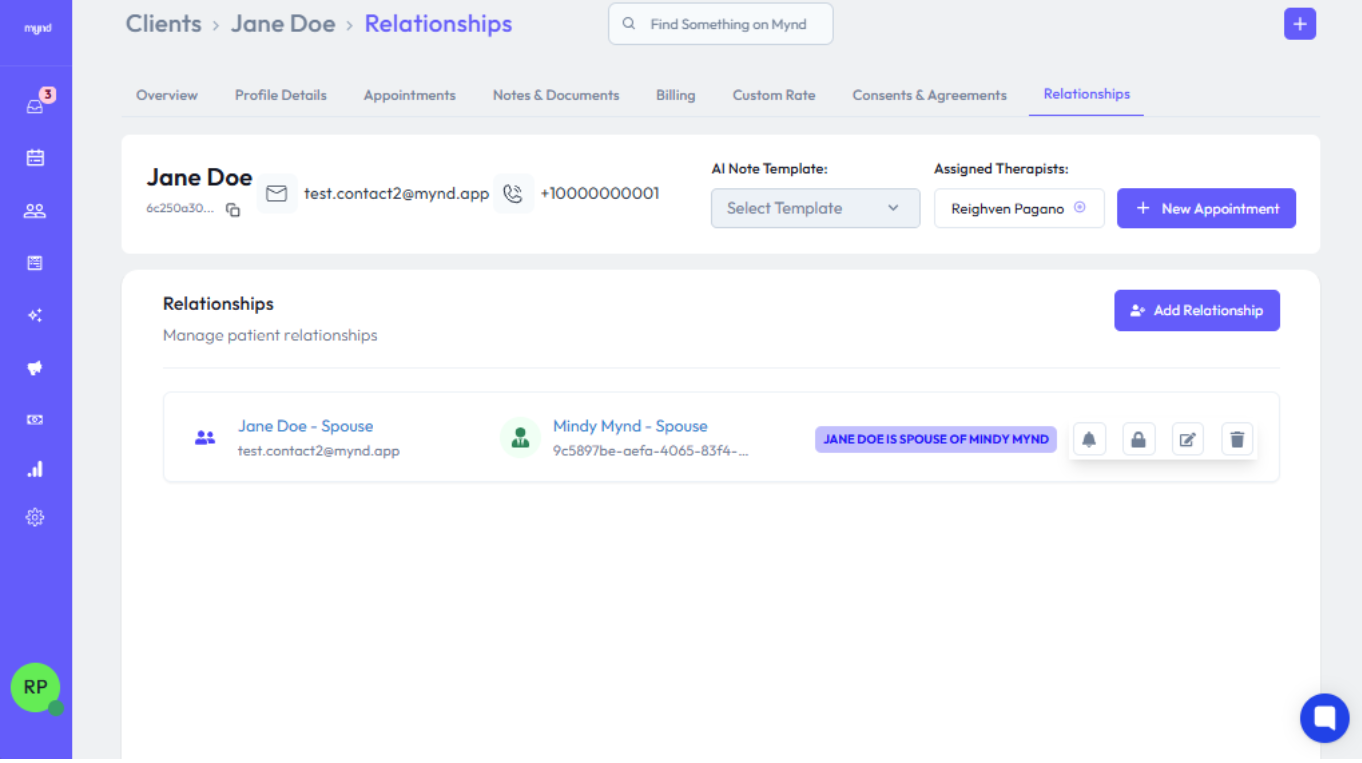
Locate the Relationship: In the Relationships tab list, find the relationship entry you wish to remove.
Click Remove: Click the Delete icon/button associated with that specific relationship entry.
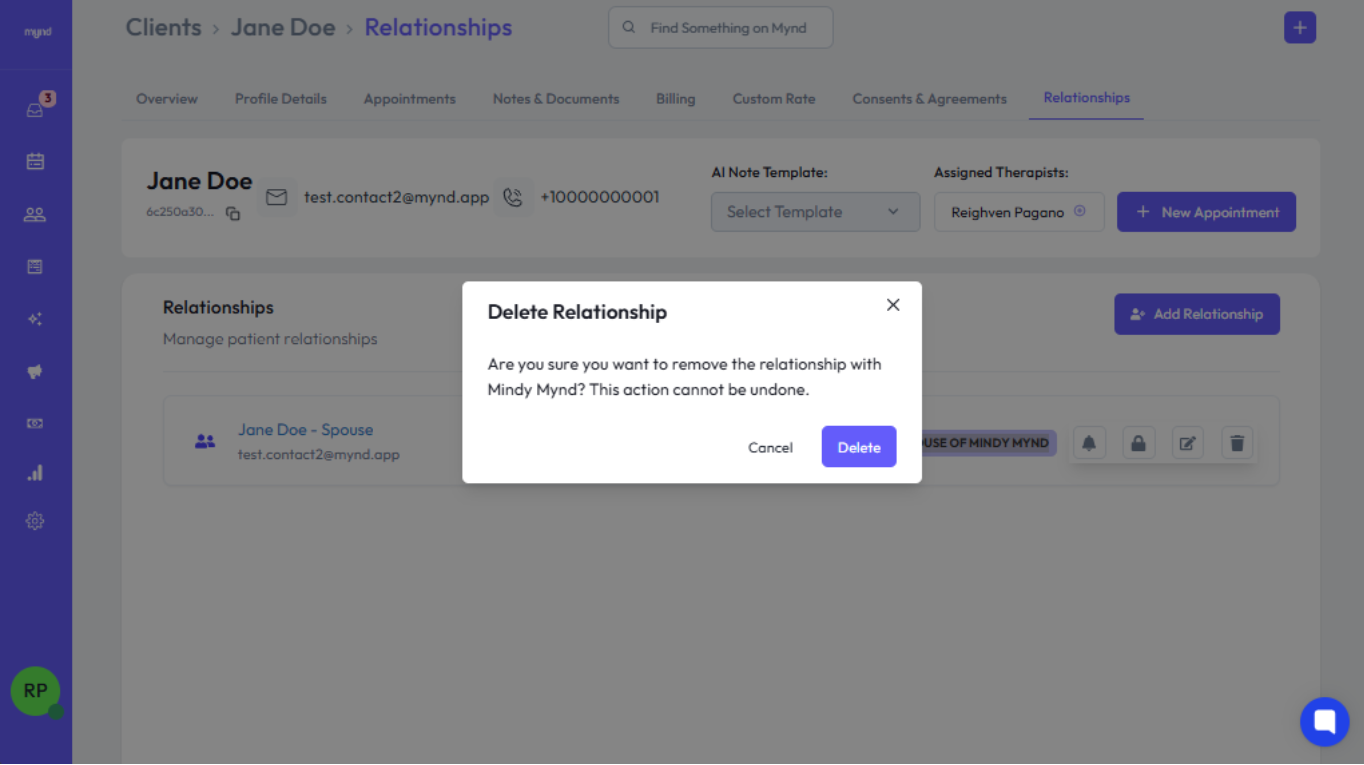
Confirm: A confirmation prompt will appear (e.g., "Are you sure you want to remove the relationship with [Client Name]?"). Click Delete.
Clicking Cancel will close the prompt without removing the relationship.
Verify Removal: The relationship entry will disappear from the list. The link is removed for both clients involved.
Support:
Still need help? Contact [email protected] or visit our Help Center.