One of the first steps to set up your practice on Kindred Practice is to go in and add your practice locations. These locations will be used when creating sessions and scheduling appointments. Details of the location will be included in the appointment reminder outreach to ensure your client has all the information for the appointment.
In Kindred Practice, we can add addresses for in person sessions, a phone number for phone sessions and a link for virtual sessions.
If part of a group practice, locations can only be set by the practice owner or admin on the platform.
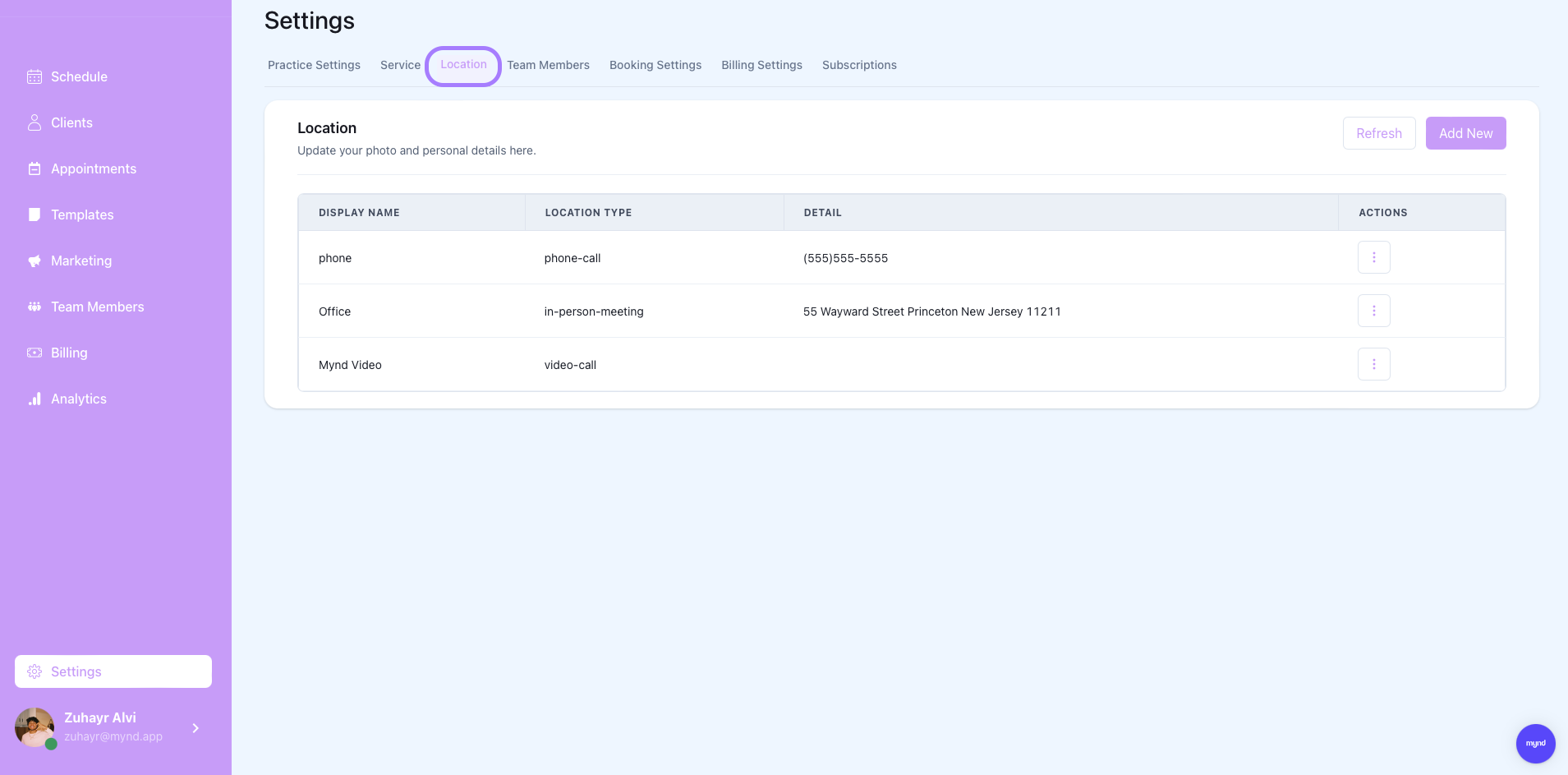

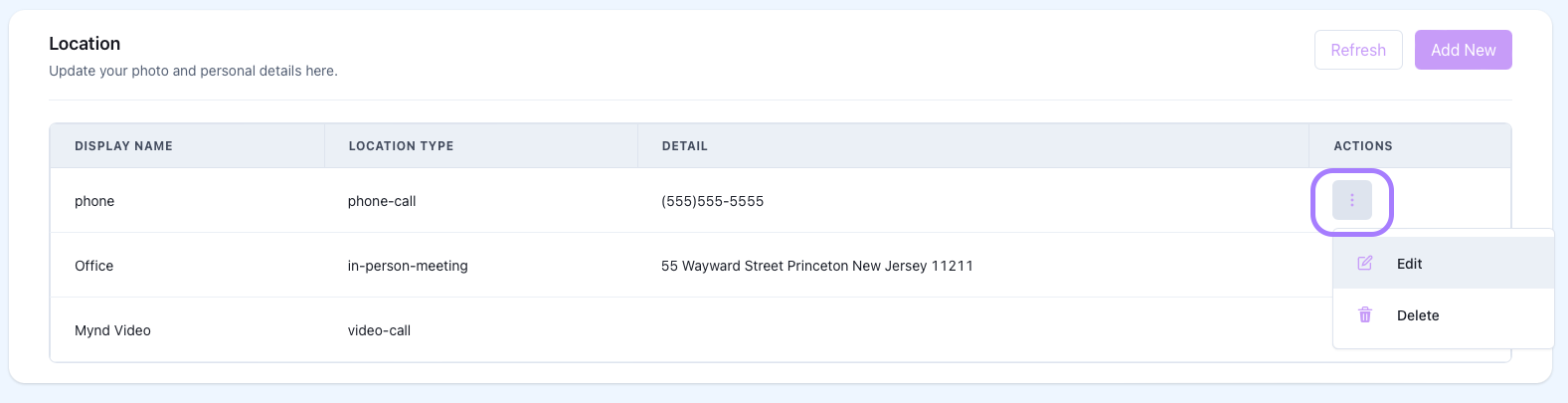
Clicking the three dots on the side of an existing location shows the menu to either delete or edit the location information.

Deleting a location will also delete the location from any existing services that previously had that location assigned. Please go review all existing services after deleting a location to ensure accuracy.
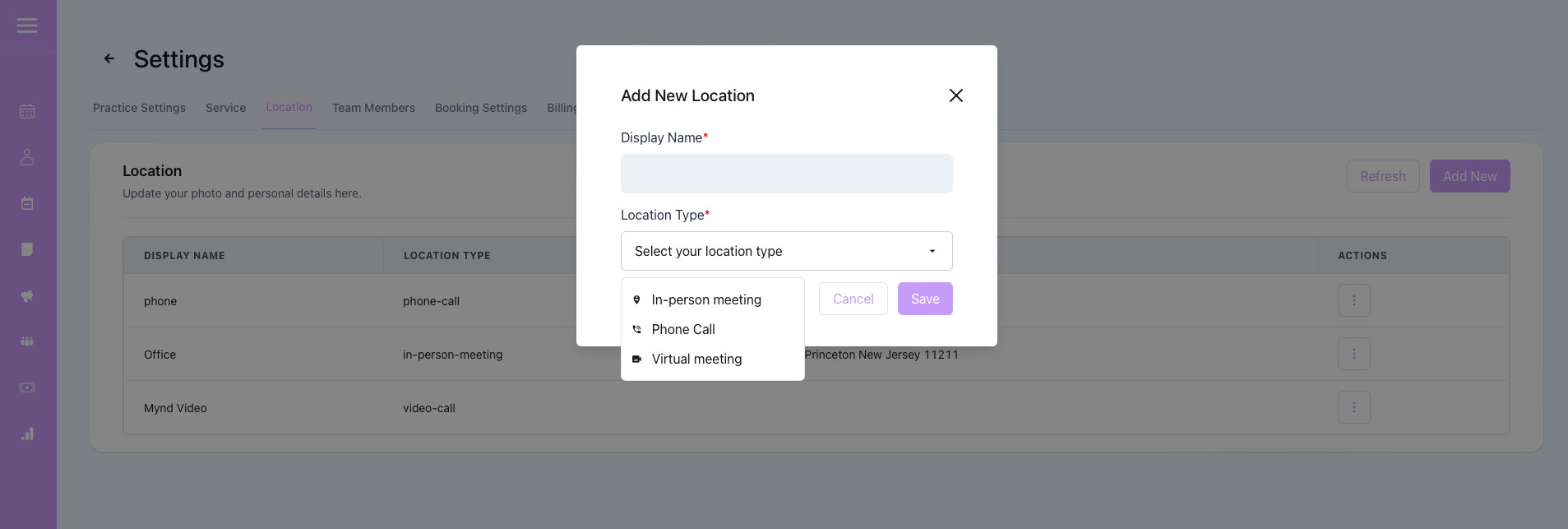
By clicking add new, you can create new locations to your practice on Kindred Practice. Display name's are used for referencing the location throughout the platform.
There are three location types: In-person, Phone Call, and Virtual Meeting
Once a location type is chosen, a third field to input location details (address, phone number or virtual link) will appear to finalize saving location.