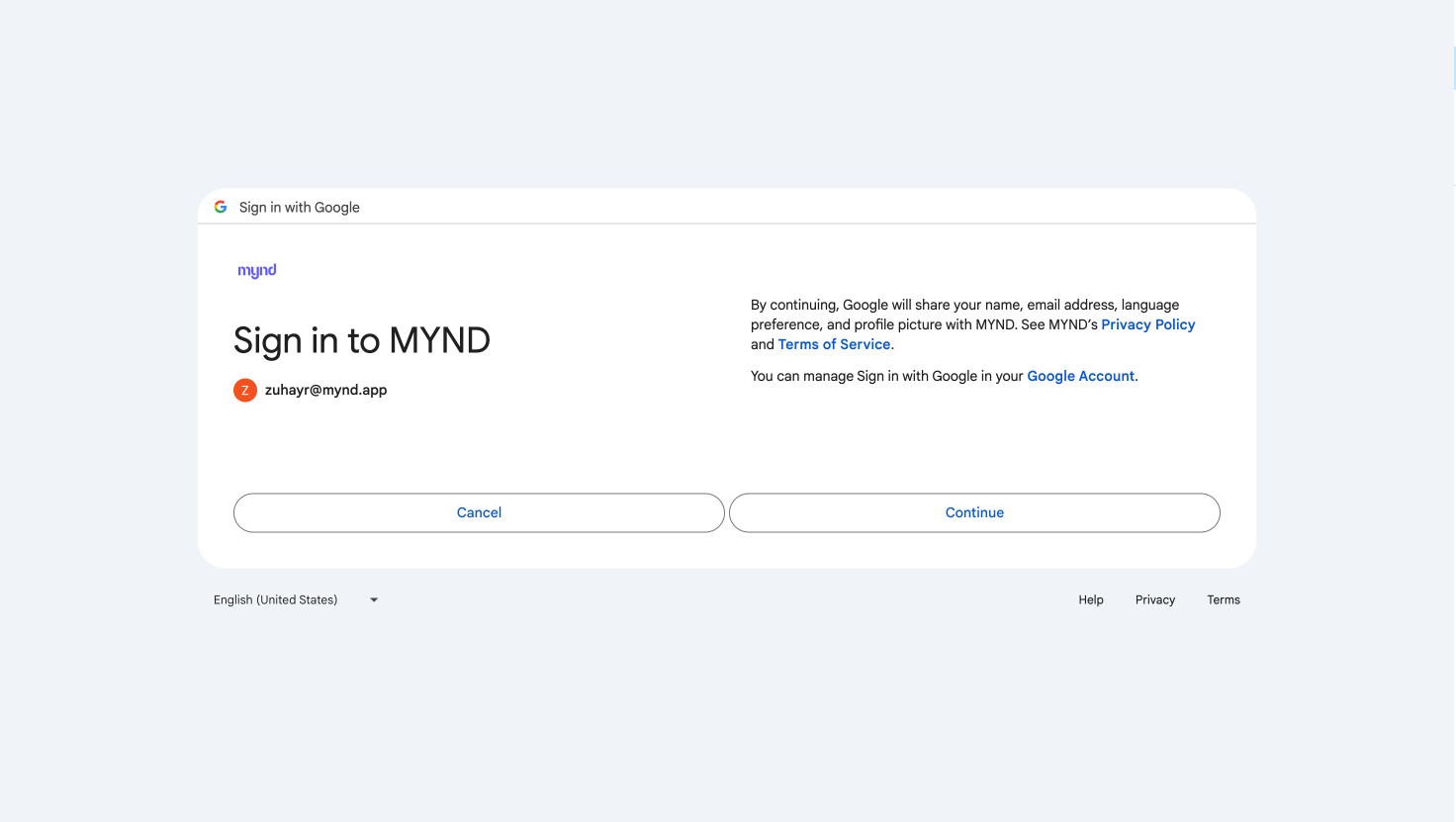
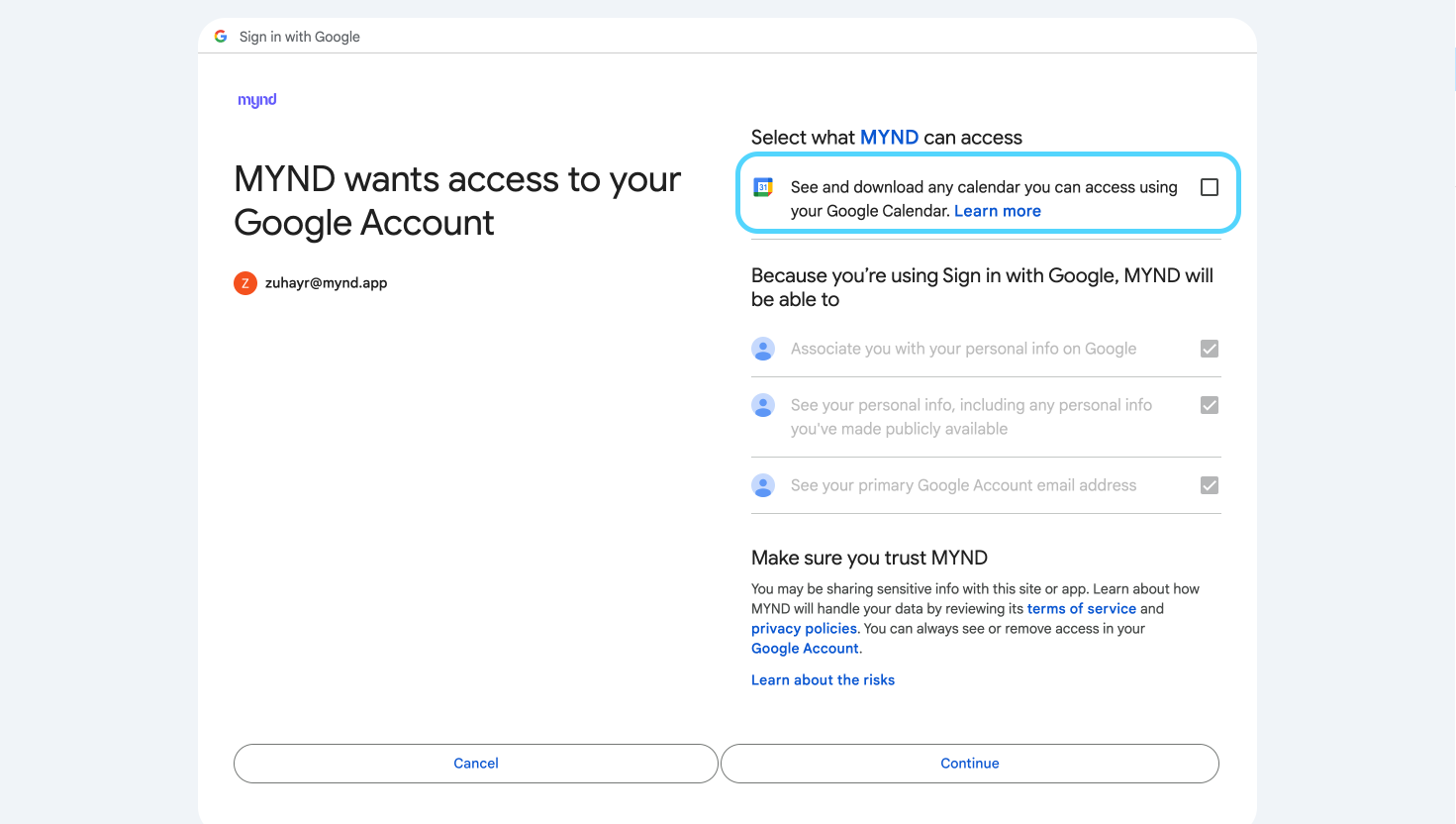
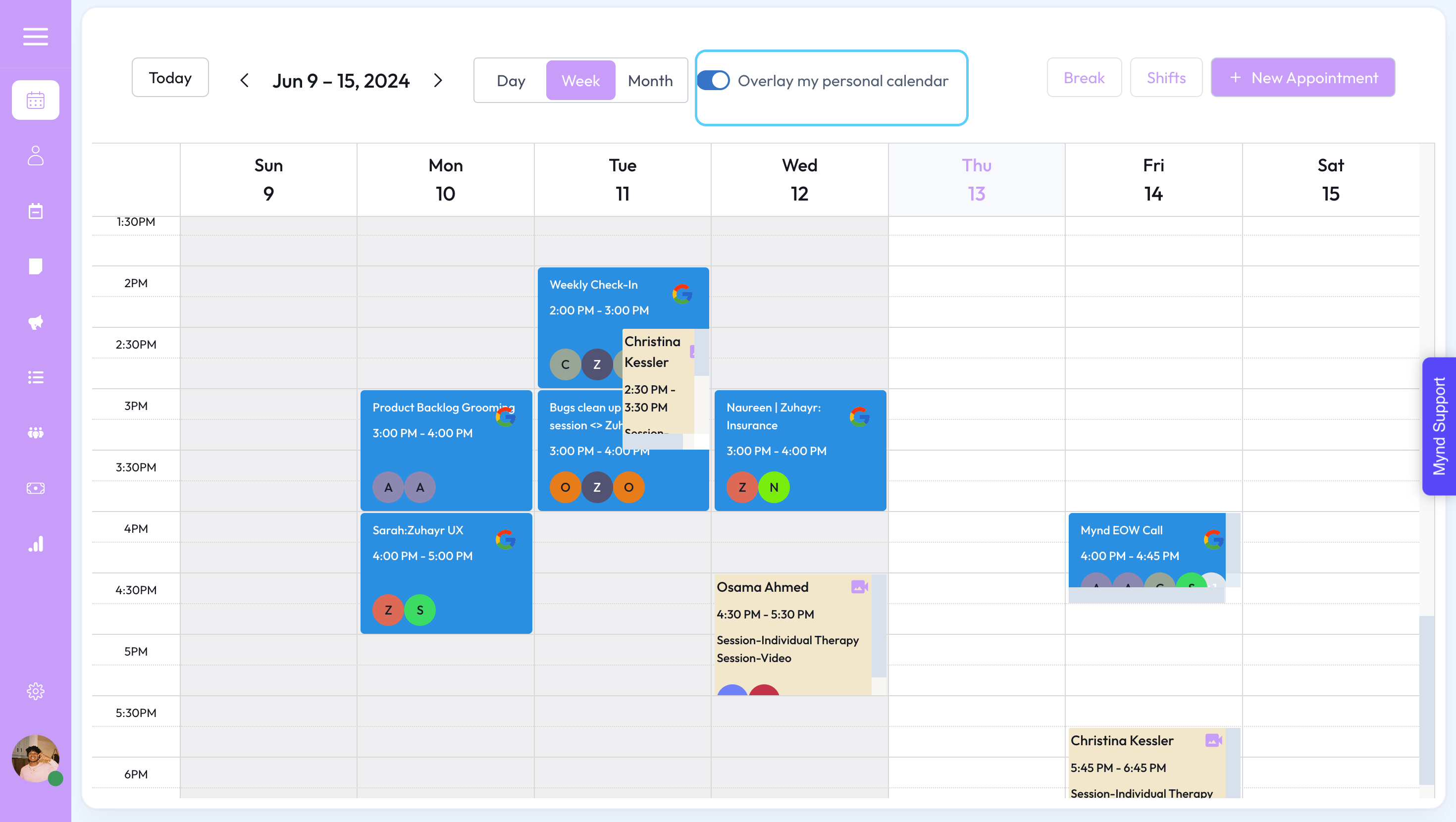
Kindred Practice allows you to seamlessly connect Google Calendar to your practice so you can manage your personal life events alongside your practice.
With our Google Calendar integration, you can choose to only have your Google events come to your Kindred Practice calendar or have it sync both ways and have your Kindred Practice Sessions show up on your personal calendar as well.
Kindred Practice can also block off your availability for online self booking clients depending on the events on your google calendar.
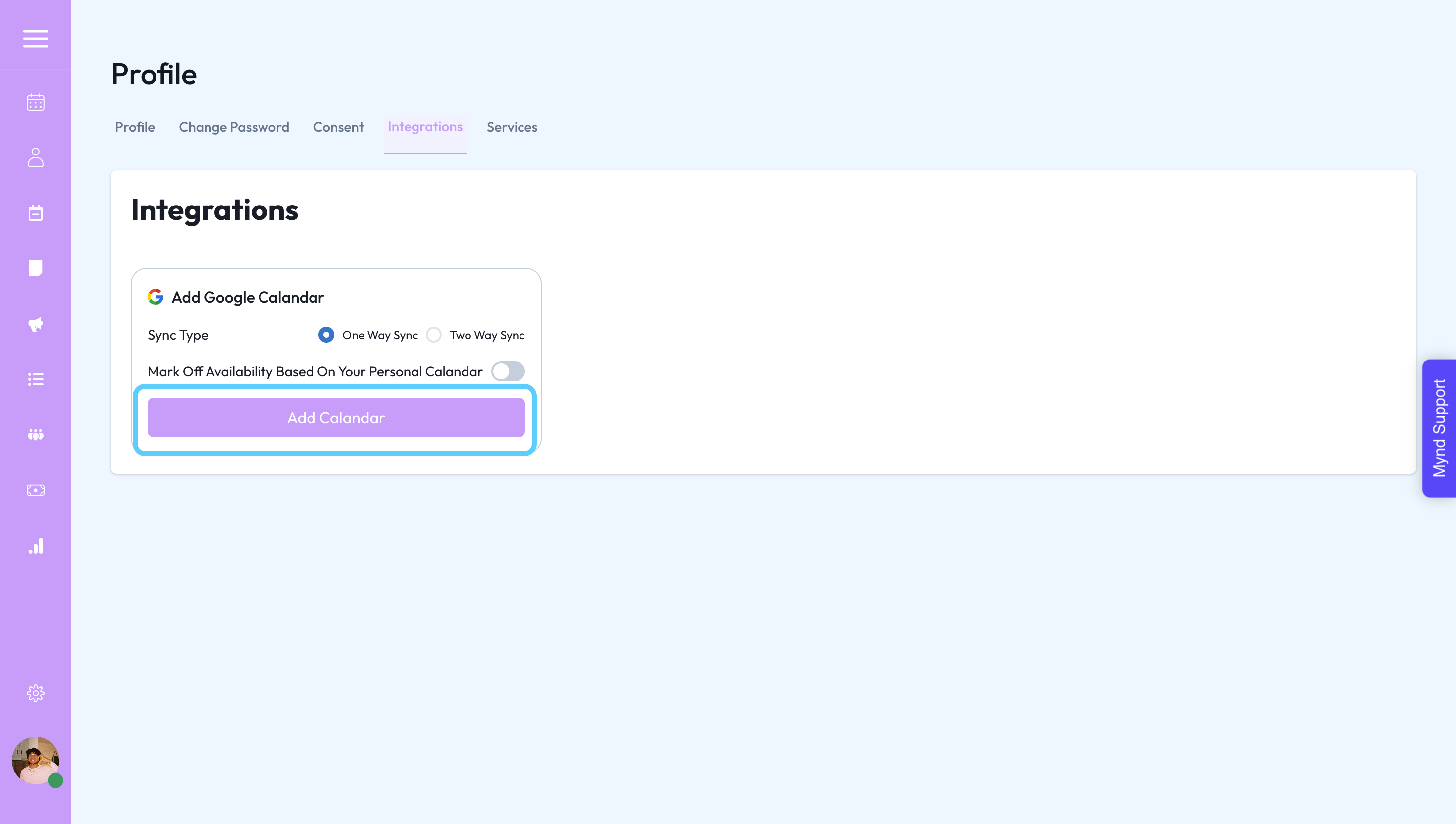
One way sync option will allow Google to send calendar events to Kindred Practice so you can view your personal calendar events on the Kindred Practice Calendar.
Two was sync allows Kindred Practice to send your appointments to your Google Calendar so you can keep track of your upcoming sessions on your personal calendar.

The last toggle will mark off your availability for anyone trying to self book themselves on the client portal or marketing page.