Creating and updating services is key when setting up to ensure all the sessions your practice offers are readily available for you and your client to schedule. Services include specifications for individual sessions or group sessions, the ability to have the created service type available for online booking by clients, and the ability to have that service type to apply taxes for the session.
In solo practices when a service is created, it is automatically applied to the practitioner. For group practices, when a service is created by an owner or admin, individual therapists can apply it to their personal profile to offer it to their clients.
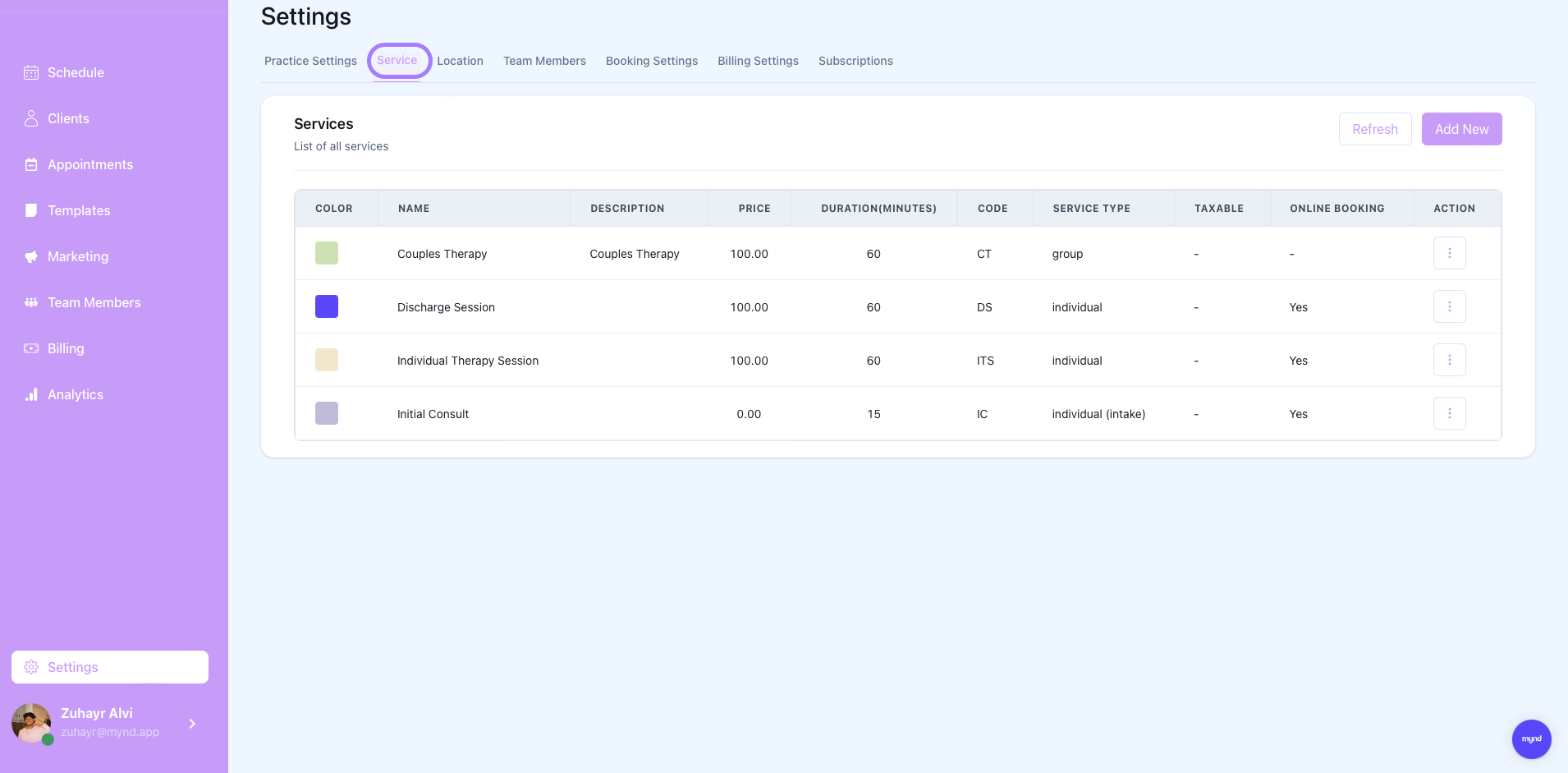
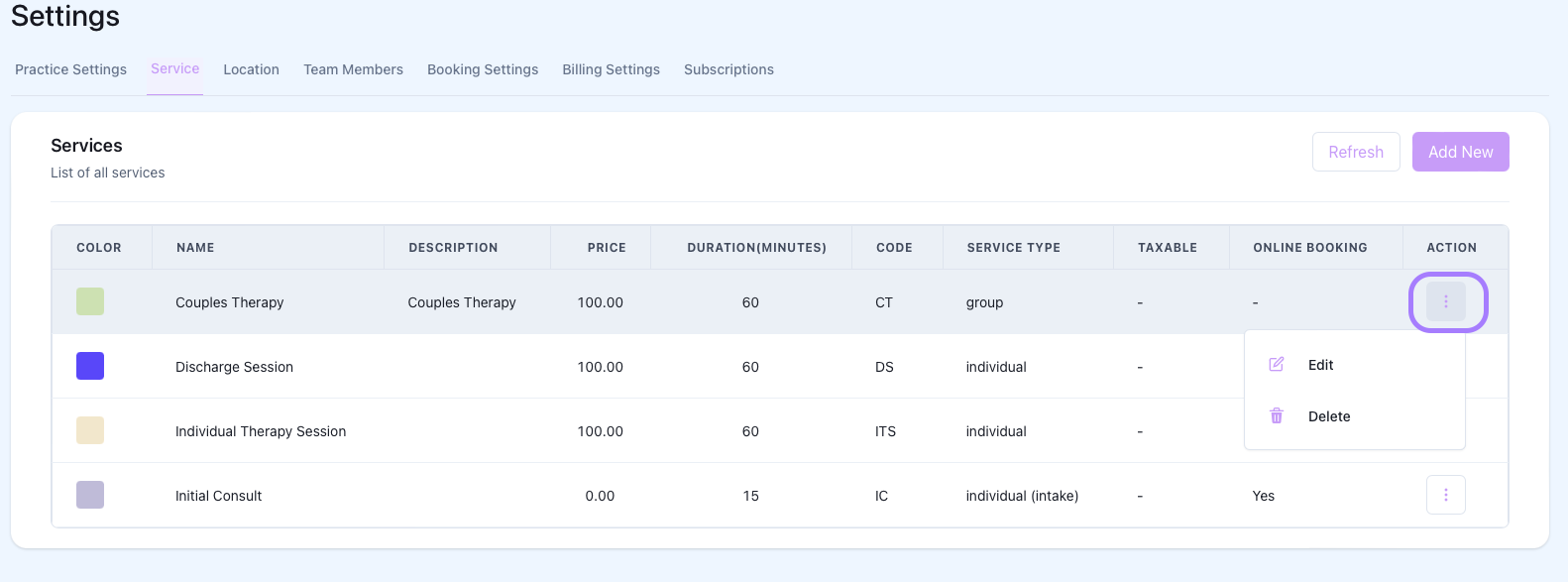
Clicking the three dots on the side of an existing service shows the menu to either delete or edit the service information.

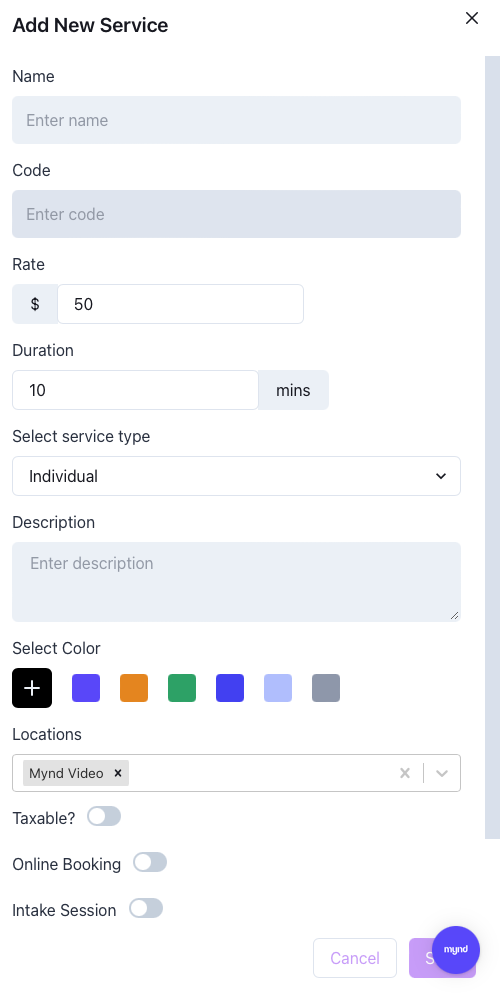
First steps when creating a new session are to add a name and a code. Code here just refers to the short hand name for a session (E.g. Name: Individual Therapy Session, Code: ITS).
Next adding the service rate. Choose the standard amount that you charge for this session.

Next choose the duration of the session and if the session is individual or group. Denoting a service will prompt you to select multiple recipients of the appointment invite when scheduling for couples therapy or family therapy for example.
Adding a description is optional to add more context around the service type. From here you can also choose a color to associate the service type with for quick glance on the scheduler view.
The following fields chooses the location. Locations must first be set in the locations tab of the Practice Settings. Services can have multiple locations associated with them that can be chosen at the time of booking.
Taxable sessions will automatically calculate tax based on the therapist's location and the rate set for the service type and apply it to the invoice.
Online booking toggle allows the client to book this service type themselves on to the therapist schedule.
Intake session toggle tags the service type as an intake session for better Paige Notetaker performance.